
On your terms
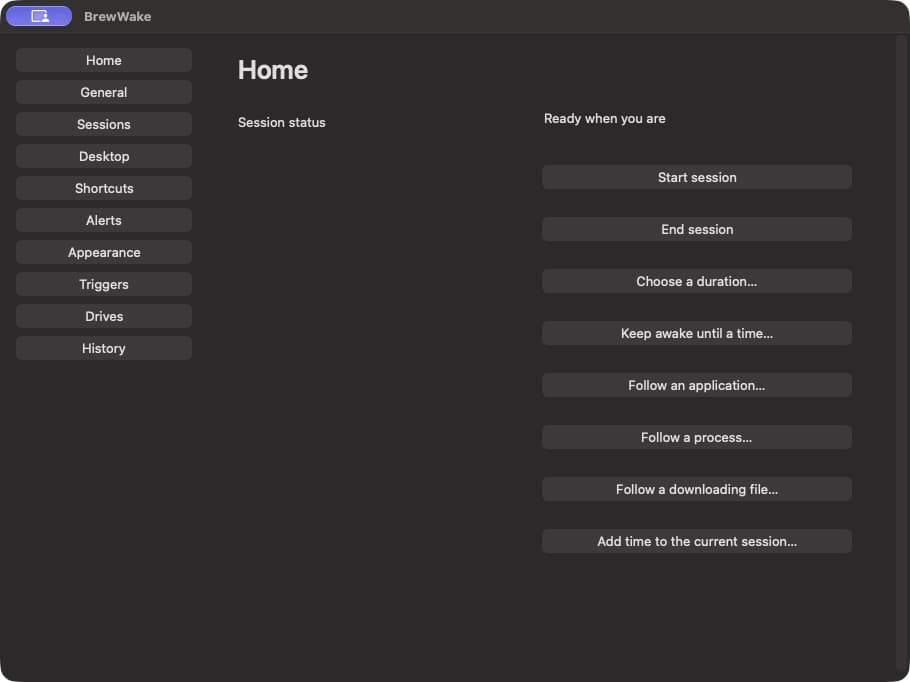
Start a session when you need your Mac awake. End it when you’re done.
BREWWAKE · A MAC APP BY SCRAPEGG
A little coffee for your menu bar. Start a keep-awake session, set a timer, and get back to what you’re doing.

Start a session when you need your Mac awake. End it when you’re done.
Choose a duration or an end time for your session.
Configure your session shortcuts and menu bar appearance in Settings.
RIGHT AT HOME ON YOUR MAC
Open BrewWake from the menu bar to start, adjust or end a session.
BREWWAKE SUPPORT
Email support@scrapegg.com with your macOS version, BrewWake version and a short description of the issue. Please leave out passwords and private files.
BrewWake runs in the menu bar. Open its menu for session controls and Settings. You can also choose whether to show it in the Dock in General settings.
Open BrewWake from the menu bar and choose End session. You can also end a session from the Home screen.
Some optional features need a file or folder you choose, Bluetooth, Location or desktop permissions. You control these choices in BrewWake and macOS System Settings.